Host the Ultimate Super Bowl Watch Party with GroupMe Events

Feb 3, 2026
Super Bowl Sunday is better with a crew. GroupMe Events makes planning your watch party fast, organized and actually fun. From smart RSVPs to a dedicated event chat, here’s how to run game day like a pro.

🏈GroupMe Game day checklist
  • Create your “Super Bowl Watch Party” event with date, time and location. Add a banner or GIF that fits your team energy.

  • Share the invite link everywhere so friends can RSVP from the web or app.

  • Poll the crew for snacks, seating and house rules.

  • Make it an event group - chat in the event’s dedicated thread for pregame plans and live reactions.

  • Post a Shared Album and add photos before kickoff so everyone knows where to drop their shots.

Create your event in seconds with game day flair

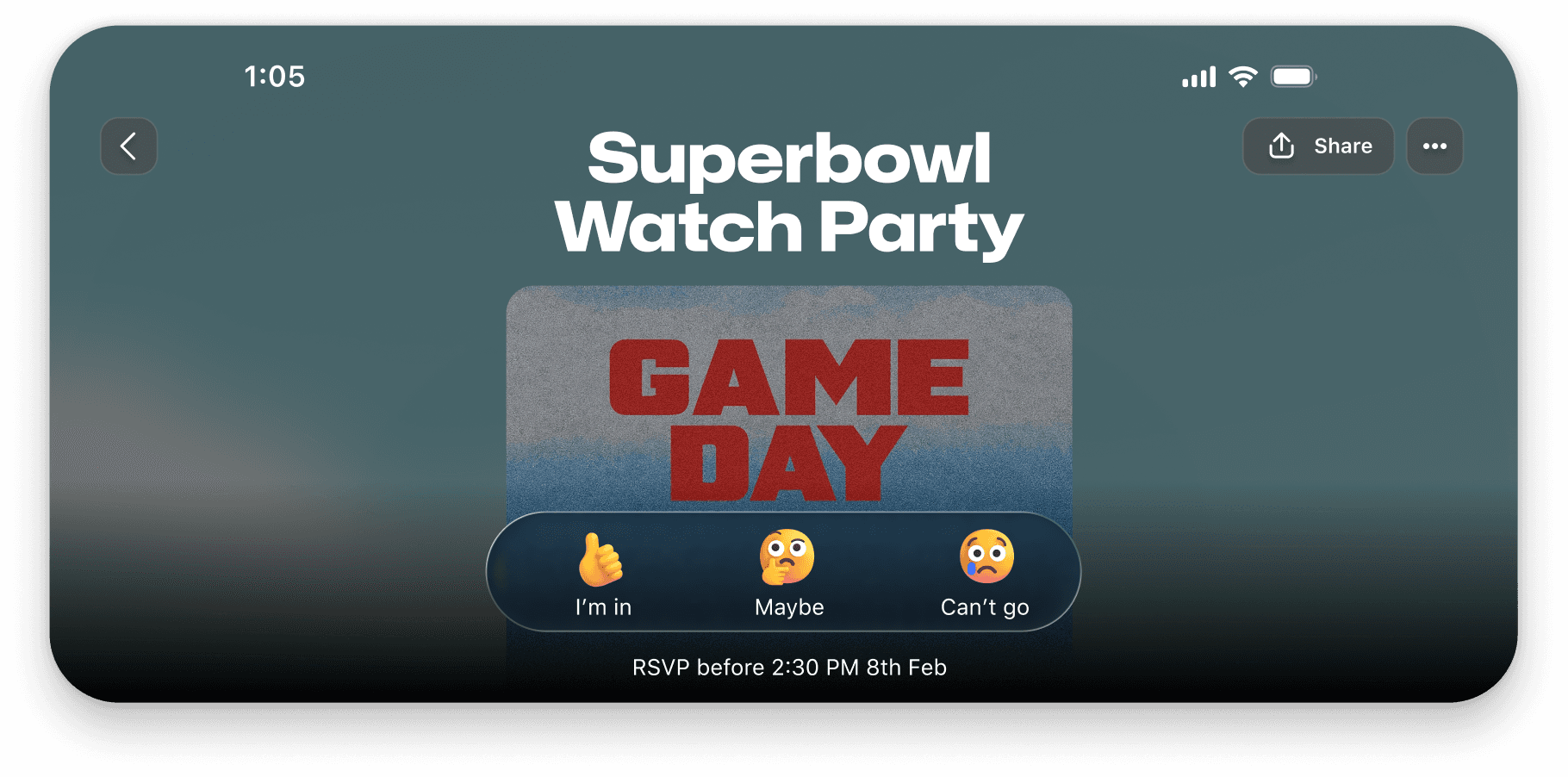
Spin up a GroupMe event with the date, time and location, then pick a banner image or search a GIF to set the vibe. The even creator has a built-in banner option and GIF or web image search.

Get headcounts right with I’m in / Maybe / Can’t go

Give guests the flexibility to commit or signal a “maybe.” On the event details page, attendees can choose I’m in, Maybe, or Can’t go, so you can plan seating, snacks and screen space without guesswork.

Share invites anywhere

Post the invite link in text, socials or email. You can also share direct join links to collect RSVPs quickly. One of GroupMe’s standout features is the ability to invite participants without requiring them to download the app. Create an event, share the invite link, and anyone can RSVP via a web browser.

Rally the crowd in a dedicated event chat

Make the event an Event Group. Every event comes with its own group chat so planning and party banter stay together. Coordinate arrival times, share parking tips and drop pregame hype all in one place. After the final whistle, keep the conversation going without cluttering other threads.

Decide food, props and game picks with built in polls

Skip endless back and forth. Use polls to make quick calls on pizza vs wings, jersey color themes, halftime games or your squares sheet rules. It is the fastest way to lock decisions with the whole group.

Capture every moment with Shared Albums

Collect everyone’s best touchdown reactions and gameday fits in one place without flooding the chat. Create a Shared Album from the group and let guests add their photos for an easy, scrollable highlight reel.

Super Bowl Sunday is better with a crew. GroupMe Events makes planning your watch party fast, organized and actually fun. From smart RSVPs to a dedicated event chat, here’s how to run game day like a pro.

🏈GroupMe Game day checklist
  • Create your “Super Bowl Watch Party” event with date, time and location. Add a banner or GIF that fits your team energy.

  • Share the invite link everywhere so friends can RSVP from the web or app.

  • Poll the crew for snacks, seating and house rules.

  • Make it an event group - chat in the event’s dedicated thread for pregame plans and live reactions.

  • Post a Shared Album and add photos before kickoff so everyone knows where to drop their shots.

Create your event in seconds with game day flair

Spin up a GroupMe event with the date, time and location, then pick a banner image or search a GIF to set the vibe. The even creator has a built-in banner option and GIF or web image search.

Get headcounts right with I’m in / Maybe / Can’t go

Give guests the flexibility to commit or signal a “maybe.” On the event details page, attendees can choose I’m in, Maybe, or Can’t go, so you can plan seating, snacks and screen space without guesswork.

Share invites anywhere

Post the invite link in text, socials or email. You can also share direct join links to collect RSVPs quickly. One of GroupMe’s standout features is the ability to invite participants without requiring them to download the app. Create an event, share the invite link, and anyone can RSVP via a web browser.

Rally the crowd in a dedicated event chat

Make the event an Event Group. Every event comes with its own group chat so planning and party banter stay together. Coordinate arrival times, share parking tips and drop pregame hype all in one place. After the final whistle, keep the conversation going without cluttering other threads.

Decide food, props and game picks with built in polls

Skip endless back and forth. Use polls to make quick calls on pizza vs wings, jersey color themes, halftime games or your squares sheet rules. It is the fastest way to lock decisions with the whole group.

Capture every moment with Shared Albums

Collect everyone’s best touchdown reactions and gameday fits in one place without flooding the chat. Create a Shared Album from the group and let guests add their photos for an easy, scrollable highlight reel.

Super Bowl Sunday is better with a crew. GroupMe Events makes planning your watch party fast, organized and actually fun. From smart RSVPs to a dedicated event chat, here’s how to run game day like a pro.

🏈GroupMe Game day checklist
  • Create your “Super Bowl Watch Party” event with date, time and location. Add a banner or GIF that fits your team energy.

  • Share the invite link everywhere so friends can RSVP from the web or app.

  • Poll the crew for snacks, seating and house rules.

  • Make it an event group - chat in the event’s dedicated thread for pregame plans and live reactions.

  • Post a Shared Album and add photos before kickoff so everyone knows where to drop their shots.

Create your event in seconds with game day flair

Spin up a GroupMe event with the date, time and location, then pick a banner image or search a GIF to set the vibe. The even creator has a built-in banner option and GIF or web image search.

Get headcounts right with I’m in / Maybe / Can’t go

Give guests the flexibility to commit or signal a “maybe.” On the event details page, attendees can choose I’m in, Maybe, or Can’t go, so you can plan seating, snacks and screen space without guesswork.

Share invites anywhere

Post the invite link in text, socials or email. You can also share direct join links to collect RSVPs quickly. One of GroupMe’s standout features is the ability to invite participants without requiring them to download the app. Create an event, share the invite link, and anyone can RSVP via a web browser.

Rally the crowd in a dedicated event chat

Make the event an Event Group. Every event comes with its own group chat so planning and party banter stay together. Coordinate arrival times, share parking tips and drop pregame hype all in one place. After the final whistle, keep the conversation going without cluttering other threads.

Decide food, props and game picks with built in polls

Skip endless back and forth. Use polls to make quick calls on pizza vs wings, jersey color themes, halftime games or your squares sheet rules. It is the fastest way to lock decisions with the whole group.

Capture every moment with Shared Albums

Collect everyone’s best touchdown reactions and gameday fits in one place without flooding the chat. Create a Shared Album from the group and let guests add their photos for an easy, scrollable highlight reel.

Getting Started with GroupMe

Get the app: Download the GroupMe App or navigate to GroupMe.com 

Sign Up or Log In: Go to GroupMe and sign up for an account if you don’t have one. If you already have an account, simply log in. 

Create a Group Chat or Event Group: Once logged in, create a new "Event Group". This will be the central hub for all communications about your event.

Invite Members: Send out invites to your community to collect RSVPs for your event. When they RSVP, they'll automatically be added to your event group chat. You can do this directly within the app by sharing a join link or entering in their phone number.

Getting Started with GroupMe

Get the app: Download the GroupMe App or navigate to GroupMe.com 

Sign Up or Log In: Go to GroupMe and sign up for an account if you don’t have one. If you already have an account, simply log in. 

Create a Group Chat or Event Group: Once logged in, create a new "Event Group". This will be the central hub for all communications about your event.

Invite Members: Send out invites to your community to collect RSVPs for your event. When they RSVP, they'll automatically be added to your event group chat. You can do this directly within the app by sharing a join link or entering in their phone number.

Getting Started with GroupMe

Get the app: Download the GroupMe App or navigate to GroupMe.com 

Sign Up or Log In: Go to GroupMe and sign up for an account if you don’t have one. If you already have an account, simply log in. 

Create a Group Chat or Event Group: Once logged in, create a new "Event Group". This will be the central hub for all communications about your event.

Invite Members: Send out invites to your community to collect RSVPs for your event. When they RSVP, they'll automatically be added to your event group chat. You can do this directly within the app by sharing a join link or entering in their phone number.

✦ EST 2010 ✦ NEW YORK CITY